
DocumentationChapter 05 of 14
05The setup wizard
The setup wizard runs the first time you open MaintDock. Until the setup is done, every page sends you to the wizard. MaintDock ships with no users. You create the first admin account in the wizard.
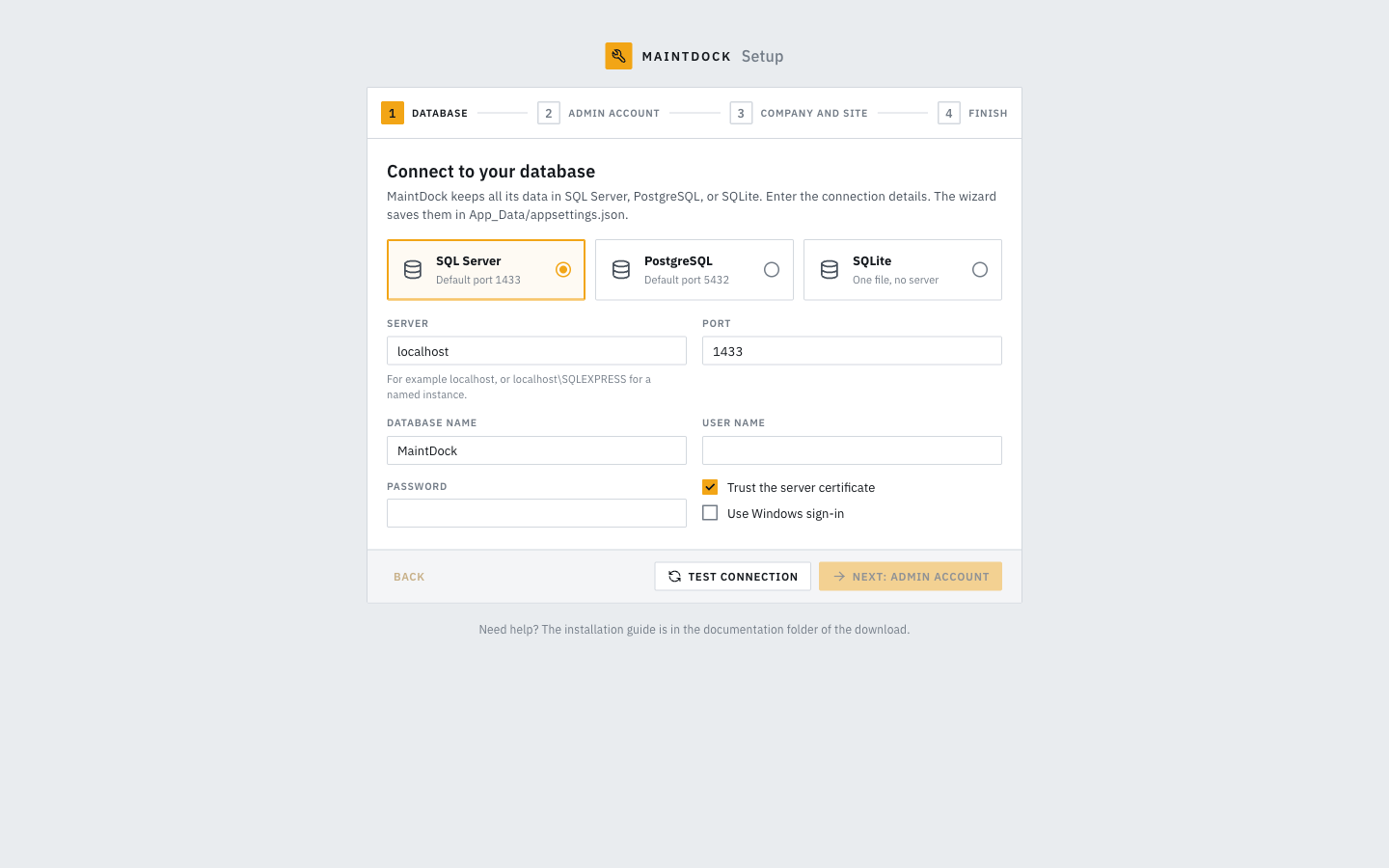
The wizard has four steps:
- Database. Choose SQL Server, PostgreSQL, or SQLite. For SQL Server and PostgreSQL, enter the server (for example
localhost,localhost\SQLEXPRESS, ordbin Docker), the port (1433 for SQL Server, 5432 for PostgreSQL), the database name, the user name, and the password. For SQL Server there are two more options: Trust the server certificate (for a server with a self-signed certificate) and Use Windows sign-in (then the user name and password fields are hidden). For SQLite, enter the database file instead. KeepApp_Data/maintdock.db, or enter another path. A relative path is in the app folder. Click Test connection. The test can take up to 15 seconds. Next: admin account works only after a test that passed with the current values.- The connection works: you can go on.
- MaintDock could not connect: check the server, the port, the user name, and the password. Check also that the database server accepts connections from this computer.
- This database belongs to another program: use an empty database.
- This database already has MaintDock data: MaintDock keeps the data and adds your admin account. It cannot add sample data then. To start fresh, use a new database name (with SQLite, a new file name).
- MaintDock can use this file (SQLite): you can go on. MaintDock creates the file when you install.
- MaintDock cannot use this file (SQLite): the path is a folder, or MaintDock may not write to the folder. SQLite also writes two small files next to the database, so MaintDock needs write access to the folder, not only to the file.
- Admin account. Enter your full name, your email, and a password, and type the password again to confirm it. The password needs at least 8 characters, with a number, a lowercase letter, and an uppercase letter. This account can do everything in MaintDock, on all sites.
- Company and site. Enter the company name, the first site (for example North Plant) and a short site code (for example NP), the time zone, the currency code (for example USD) and symbol (for example $), and the public web address. If you want to try MaintDock first, tick Add sample data (Riverbend Packaging Co.) to try MaintDock. You can change all of this later in Settings.
- Finish. Check the details and click Install. The wizard creates the tables, the roles, the downtime causes, and the numbering. Then it creates your admin account, the first site and its store, and the company settings. It adds the sample data if you asked for it, and it saves the settings file. When it is done, click Sign in.
If a part of the install fails, go back, fix the details, and click Try again. Parts that are already done are kept and skipped.
If the wizard cannot save the settings file
The wizard saves the database connection in App_Data/appsettings.json. If the app may not write that file, the wizard shows the lines to add by hand. Create the file (or open it) in a text editor, add or replace those lines, keep the other settings, and restart MaintDock. Then sign in. To stop this from happening, give the app's user write access to the app folder (see the IIS and Linux steps).
Run the wizard again
After the setup, the wizard is locked. To run it again, open App_Data/appsettings.json, set "Setup": { "Completed": false }, and restart the app.
The settings file
Settings that are not on the Settings screen are in appsettings.json in the app folder. The setup wizard writes the first three settings below to App_Data/appsettings.json. The values in that file win over appsettings.json, so an update that replaces appsettings.json keeps your setup. Environment variables win over both files, for example ConnectionStrings__Default.
| Setting | Meaning |
|---|---|
Database:Provider | SqlServer, PostgreSql, or Sqlite. The wizard sets it. |
ConnectionStrings:Default | The database connection. The wizard sets it. For SQLite it is the file, for example Data Source=App_Data/maintdock.db. A relative path is in the app folder. |
Setup:Completed | true after the wizard. |
Setup:SettingsFile | Optional. Another file for the three settings above. Default: App_Data/appsettings.json. |
Files:StoragePath | Where uploaded files are stored. Default: App_Data/files in the app folder. |
DataProtection:KeysPath | Where the keys that protect sign-in cookies and the SMTP password are stored. Default: App_Data/keys. |
Https:Redirect | true to redirect HTTP to HTTPS inside the app. Use it only when no proxy does it. |
AllowedHosts | The host names that MaintDock answers to, separated by semicolons, for example maint.example.com;localhost. Default: * (any name). See HTTPS and the web address. |
You can also set each value with an environment variable. Use two underscores instead of the colon, for example ConnectionStrings__Default. Restart MaintDock after you change the file.